MyCarTracks API v3 includes a live vehicle position WebSocket endpoint for customer-built live maps and fleet dashboards.
Use it when you want to show vehicle movement in your own dispatch screen, operations dashboard, customer portal, control room, CRM, ERP, or internal business system. Instead of polling the same REST endpoint again and again, your application creates an authorized stream, connects to the returned WebSocket URL, and receives position events when selected vehicles update.
What you can build
Customers use the live position stream to build:
- Dispatcher maps with moving vehicle markers.
- Customer portals that show selected delivery or service vehicles.
- Branch, region, or group-specific fleet dashboards.
- Control room displays for vehicles, drivers, and field teams.
- Monitoring workflows that highlight vehicles that stopped sending positions.
- Internal AI-assisted summaries such as “which vehicles are online now” or “which vehicles stopped updating”.
The endpoint is useful when you already use MyCarTracks for tracking but need your own user interface, map style, filtering, branding, or business workflow.
API methods
The live dashboard flow uses two REST API methods and one WebSocket connection.
| Step | Method | Purpose |
|---|---|---|
| 1 | GET /vehicles/lastPositions |
Load the current marker positions before opening the live stream. |
| 2 | POST /vehicles/livePositions/stream |
Create a short-lived stream session for selected vehicles or groups. |
| 3 | Connect to websocketUrl |
Receive live position, offline, heartbeat, and error events. |
Base URL:
https://mycartracks.com/services/rest/v3
API v3 documentation:
Before you start
You need API v3 credentials with the read scope.
To create or manage API credentials:
- Log in to your MyCarTracks web account.
- Open Settings from the menu with your profile image or initials.
- Select API.
- Generate API credentials if needed.
- Save the settings.
Request an OAuth2 access token before calling the REST endpoints:
curl -X POST "https://mycartracks.com/oauth/token" \
  -u "CLIENT_ID:CLIENT_SECRET" \
  -d "grant_type=client_credentials" \
  -d "scope=read"
Use the returned access token in the Authorization header.
Recommended dashboard flow
Use this flow for a live map:
- Request an OAuth2 access token with the
readscope. - Call
GET /vehicles/lastPositionsand draw the first marker positions. - Call
POST /vehicles/livePositions/streamwith the vehicles or vehicle groups your dashboard needs. - Connect to the returned
websocketUrl. - Move markers when
vehicle.position.updatedevents arrive. - Mark vehicles stale or offline when
vehicle.offlineevents arrive. - Recreate the stream and reconnect when the stream expires or the socket closes.
This gives your dashboard an immediate initial state and then keeps it fresh with WebSocket events.
Step 1: Load current positions
Start with the last known positions so the map is not empty while the WebSocket connects.
curl "https://mycartracks.com/services/rest/v3/vehicles/lastPositions?limit=50" \
  -H "Authorization: Bearer ACCESS_TOKEN"
Use the response to draw the first marker for each vehicle. The WebSocket stream can then update those markers as new positions arrive.
Step 2: Create a live stream
Create a stream for selected vehicles:
curl -X POST "https://mycartracks.com/services/rest/v3/vehicles/livePositions/stream" \
  -H "Authorization: Bearer ACCESS_TOKEN" \
  -H "Content-Type: application/json" \
  -d '{
    "vehicleIds": [123, 456],
    "includeSharedVehicles": true,
    "minIntervalSeconds": 5,
    "fields": [
      "vehicleId",
      "vehicleName",
      "userId",
      "userName",
      "latitude",
      "longitude",
      "speed",
      "heading",
      "recordedAt",
      "receivedAt",
      "onlineState"
    ]
  }'
To stream vehicles from groups, send vehicleGroupIds instead of vehicleIds:
{
  "vehicleGroupIds": [10, 20],
  "includeSharedVehicles": true,
  "minIntervalSeconds": 5
}
To stream the vehicles available to the API credentials, omit both vehicleIds and vehicleGroupIds.
Request body fields:
vehicleIds- vehicle IDs to include.vehicleGroupIds- vehicle group IDs to include.includeSharedVehicles- whether shared vehicles may be included. Defaults totrue.minIntervalSeconds- minimum seconds between position checks. The minimum and default is5.fields- optional list of fields to include invehicle.position.updatedevents.
Stream response
The response contains the WebSocket URL and stream timing details:
{
  "streamId": "lps_01HZ0000000000000000000000",
  "websocketUrl": "wss://mycartracks.com/services/rest/v3/vehicles/livePositions/stream/lps_01HZ0000000000000000000000?token=...",
  "expiresAt": "2026-06-01T14:30:00Z",
  "heartbeatSeconds": 30,
  "minIntervalSeconds": 5
}
Important details:
websocketUrlcontains a one-time stream token.expiresAttells you when to create a new stream session.heartbeatSecondstells you how often heartbeat events are sent.minIntervalSecondsconfirms the position check interval for this stream.
Do not share the returned websocketUrl in public logs, browser console screenshots, or support tickets. It contains an access token for this stream session.
Step 3: Connect to the WebSocket
Use the returned websocketUrl directly:
const socket = new WebSocket(stream.websocketUrl);

socket.addEventListener("open", () => {
  console.log("Live position stream connected");
});

socket.addEventListener("message", (message) => {
  const event = JSON.parse(message.data);

  switch (event.type) {
    case "connected":
      console.log("Stream session", event.streamId);
      break;
    case "vehicle.position.updated":
      updateVehicleMarker(event);
      break;
    case "vehicle.offline":
      markVehicleOffline(event.vehicleId, event.lastSeenAt);
      break;
    case "heartbeat":
      markStreamHealthy(event.sentAt);
      break;
    case "error":
      console.warn("Live stream error", event.code, event.message);
      break;
  }
});

socket.addEventListener("close", () => {
  scheduleReconnect();
});
When the WebSocket closes, create a new stream session with POST /vehicles/livePositions/stream and connect to the new websocketUrl.
WebSocket events
The WebSocket sends these event types:
| Event | What it means | What your app should do |
|---|---|---|
connected |
The socket connected to the stream session. | Mark the stream as connected. |
vehicle.position.updated |
A selected vehicle has a fresh position. | Move the marker and update speed, heading, and last-seen time. |
vehicle.offline |
A vehicle became stale or stopped sending fresh positions. | Change marker state or show an offline label. |
heartbeat |
The stream is still alive. | Keep connection health status current. |
error |
The stream reported an error. | Log the error and reconnect if needed. |
Position update event
Example vehicle.position.updated event:
{
  "type": "vehicle.position.updated",
  "vehicleId": 123,
  "vehicleName": "Van 12",
  "userId": 42,
  "userName": "John Smith",
  "latitude": 48.1486,
  "longitude": 17.1077,
  "speed": 42.5,
  "heading": 90.0,
  "recordedAt": "2026-06-01T14:21:35Z",
  "receivedAt": "2026-06-01T14:21:38Z",
  "onlineState": "online"
}
Use this event to move an existing marker, add a marker for a newly visible vehicle, update speed or driver details, and refresh the last-seen time.
Offline event
Example vehicle.offline event:
{
  "type": "vehicle.offline",
  "vehicleId": 123,
  "lastSeenAt": "2026-06-01T14:19:12Z"
}
Use this event to change marker color, show an offline label, or alert dispatchers that a vehicle stopped sending fresh positions.
Field selection
The stream request supports a fields list for vehicle.position.updated events.
Supported fields:
vehicleIdvehicleNameuserIduserNamelatitudelongitudespeedheadingrecordedAtreceivedAtonlineState
Request only the fields your dashboard needs. Smaller events are easier to process and reduce bandwidth.
Make movement closer to live
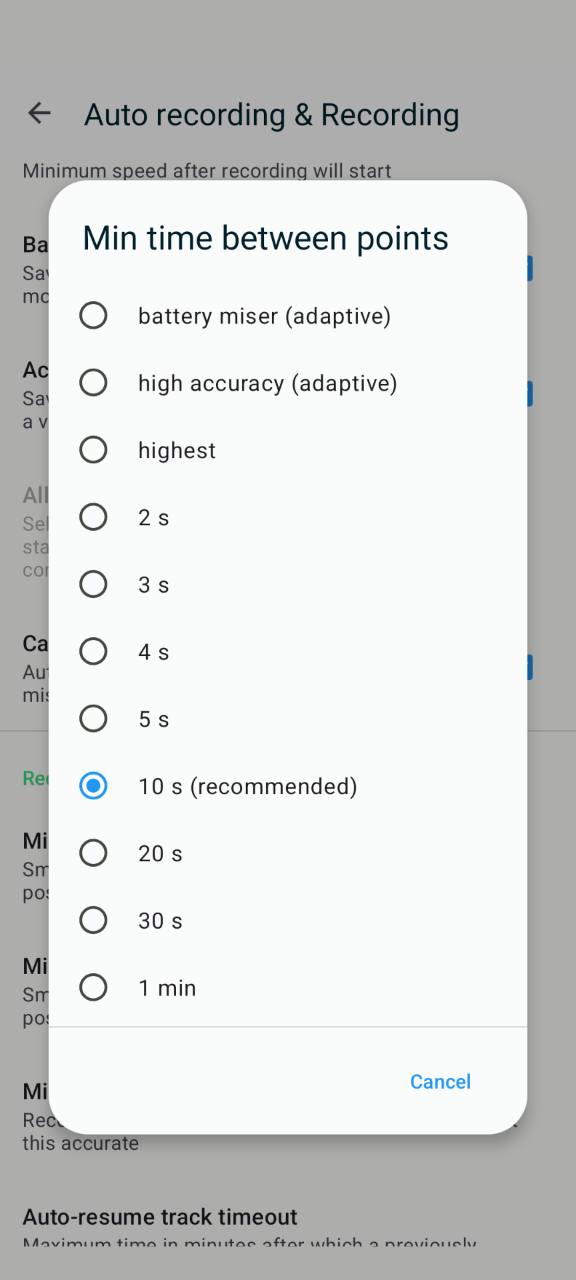
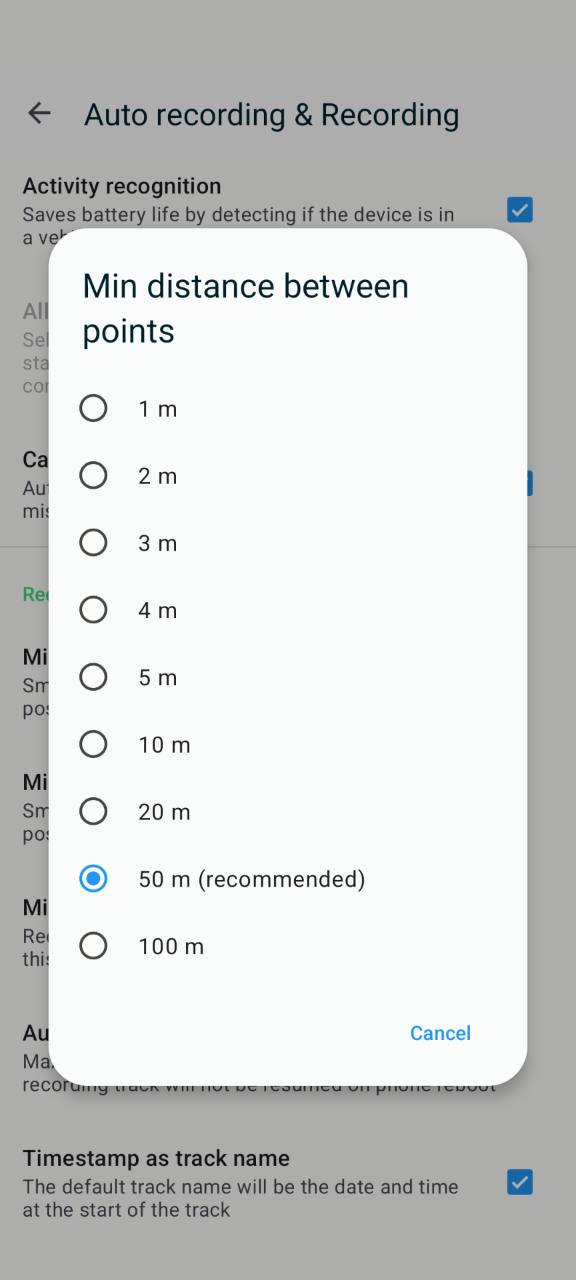
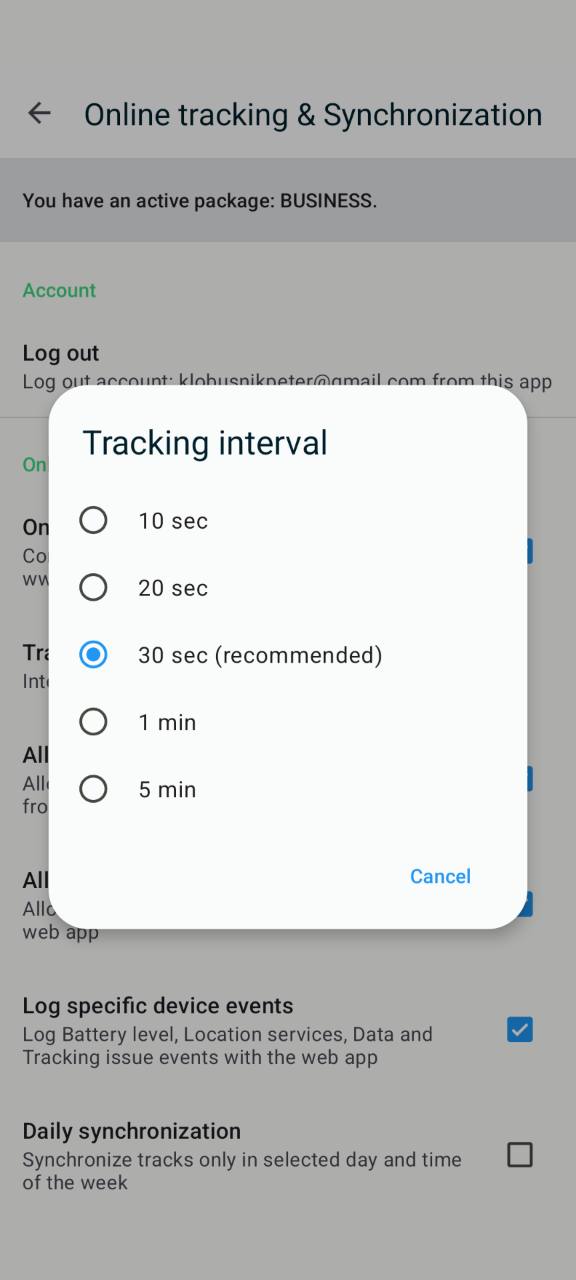
The WebSocket stream sends updates when MyCarTracks receives fresh positions from the tracked device. The API cannot create new GPS points by itself. For smoother marker movement, the Android app must also record and send positions often enough.
Review these Android settings with the customer before expecting a nearly live dashboard.
In Auto recording & Recording:
- Min time between points controls the minimum time between recorded trackpoints. Lower values can create more frequent points.
- Min distance between points controls how far the vehicle should move before another point is recorded. Lower values can make marker movement smoother.
In Online tracking & Synchronization:
- Online tracking must be enabled.
- Tracking interval controls how often the app sends online tracking data while recording. Shorter intervals can make custom dashboards update more often.
Recommended starting point:
- Keep online tracking enabled on the Android device.
- Set Tracking interval to the shortest suitable value for the use case.
- Lower Min time between points and Min distance between points only when the dashboard needs smoother movement.
- Test battery use and mobile data before rolling the settings out to the whole fleet.
- Keep each WebSocket stream focused on the vehicles the dashboard actually shows.
GPS signal, network coverage, Android battery restrictions, recording settings, and online tracking settings all affect how live the dashboard feels.
Reconnect strategy
Treat each stream as a short-lived session:
- Store
expiresAtfrom the create-stream response. - Watch
heartbeatevents to detect connection health. - Reconnect if the socket closes.
- Recreate the stream before or after
expiresAt. - Request a new OAuth2 token if the API token has expired.
Avoid tight reconnect loops. If a stream fails repeatedly, wait briefly before creating a new session.
Customer use cases
Dispatch dashboard:
Show active service vehicles on a live map. Dispatchers can see which driver is closest to a job and whether a vehicle is still online.
Customer portal:
Show selected delivery or service vehicles to your own customers. Use vehicleIds or vehicleGroupIds so each portal view streams only the vehicles that customer should see.
Operations monitoring:
Feed live positions into an internal operations system. Use vehicle.offline events to highlight vehicles that need attention.
Regional fleet view:
Create one dashboard per branch, city, or region by starting streams with selected vehicle groups.
AI-assisted operations:
An internal AI agent can summarize live fleet state, stale vehicles, or branch activity from API responses. Keep credentials read-only for this type of workflow.
Best practices
- Start with
GET /vehicles/lastPositionsso the map is populated immediately. - Use
vehicleIdsorvehicleGroupIdsinstead of streaming more vehicles than the dashboard needs. - Keep
minIntervalSecondsat5or higher. - Watch
heartbeatevents to detect broken connections. - Recreate the stream when it expires.
- Keep Client Secrets and stream URLs out of public logs.
- Use read-only credentials unless your integration needs write operations elsewhere.
Troubleshooting
If no vehicles are streamed, check that the API credentials can access the requested vehicles or vehicle groups.
If the stream contains vehicles the dashboard does not need, narrow the request with vehicleIds or vehicleGroupIds.
If updates feel too frequent or too slow, review minIntervalSeconds and the Android tracking settings.
If the WebSocket closes, create a new stream session and reconnect.
If authentication fails, create a new OAuth2 token with the read scope and try again.
If marker movement is delayed, check the Android device, GPS signal, network coverage, battery restrictions, and online tracking interval.
More links
- API v3 documentation: MyCarTracks API v3
- API settings: Log in to your vehicle tracking platform MyCarTracks
- MyCarTracks API v3 integration: MyCarTracks API v3 integration
- MyCarTracks CLI: MyCarTracks CLI