Job Dispatch connects the office with your field team. Create and assign jobs in the MyCarTracks web application, follow their progress on a map, and review the time spent at each location. Workers use the Android app to read instructions, navigate to a job, update its status, and log their work.
Workers need the MyCarTracks Android app. Job Dispatch is not available in the iPhone or iPad app. Previously synchronized jobs remain available offline; updates synchronize when the device reconnects.
Screenshots use illustrative sample data. Customer and worker details have been replaced for this guide.
Before you start
Connect each worker’s Android app to the correct MyCarTracks account and make sure their driver is available for assignment. Use Fleet > Drivers & Devices to manage drivers and Fleet > Vehicles to manage vehicles. For location-based updates, workers must allow the location and background access needed for tracking and synchronize their location data with MyCarTracks.
1. Enable Job Dispatch
- Sign in to the MyCarTracks web application.
- Open Extensions in the left menu.
- Select Jobs dispatch and click Enable extension. An ENABLED badge confirms activation.
- Open Jobs in the left menu.
Jobs has four views: List, Map, Job planner, and Logs. If Jobs is missing, check that the extension is enabled for the signed-in account.
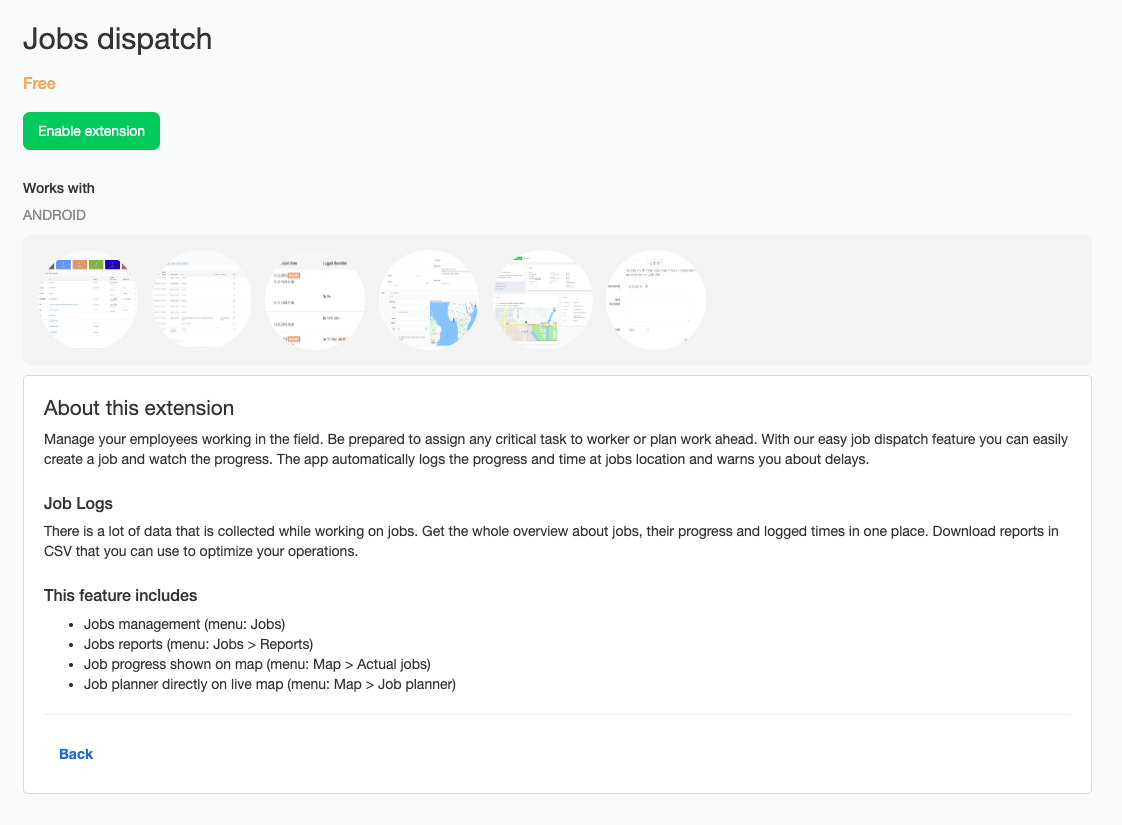
Click Enable extension to activate Jobs dispatch.
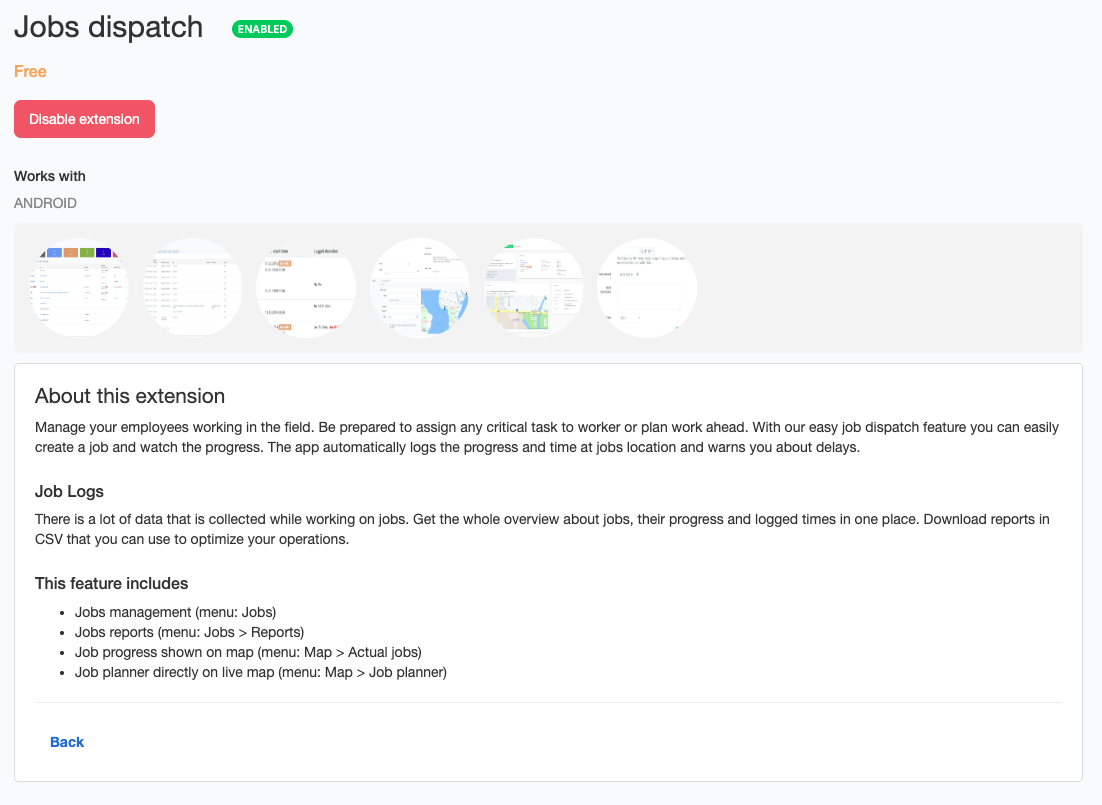
The ENABLED badge confirms activation.
2. Create and assign a job
- Open Jobs > List and click Add new job (the add button).
- Enter the task instructions in Description. Include the work to perform, access instructions, and information the worker will need on site.
- Select a Customer, if applicable, and set a Due date.
- Open Add extended details when needed to enter Plan. start time, Estimated duration, and Assign to drivers. Choose the driver or drivers responsible for the job. If a field is hidden, use Configure fields to display it.
- Set the job’s Location. Select an existing geofence or create a location on the map using Radius or Zone. If the customer has a saved position, Use customer position can help set the location.
- Click Save. The assigned job becomes available on the worker’s Android device after synchronization.
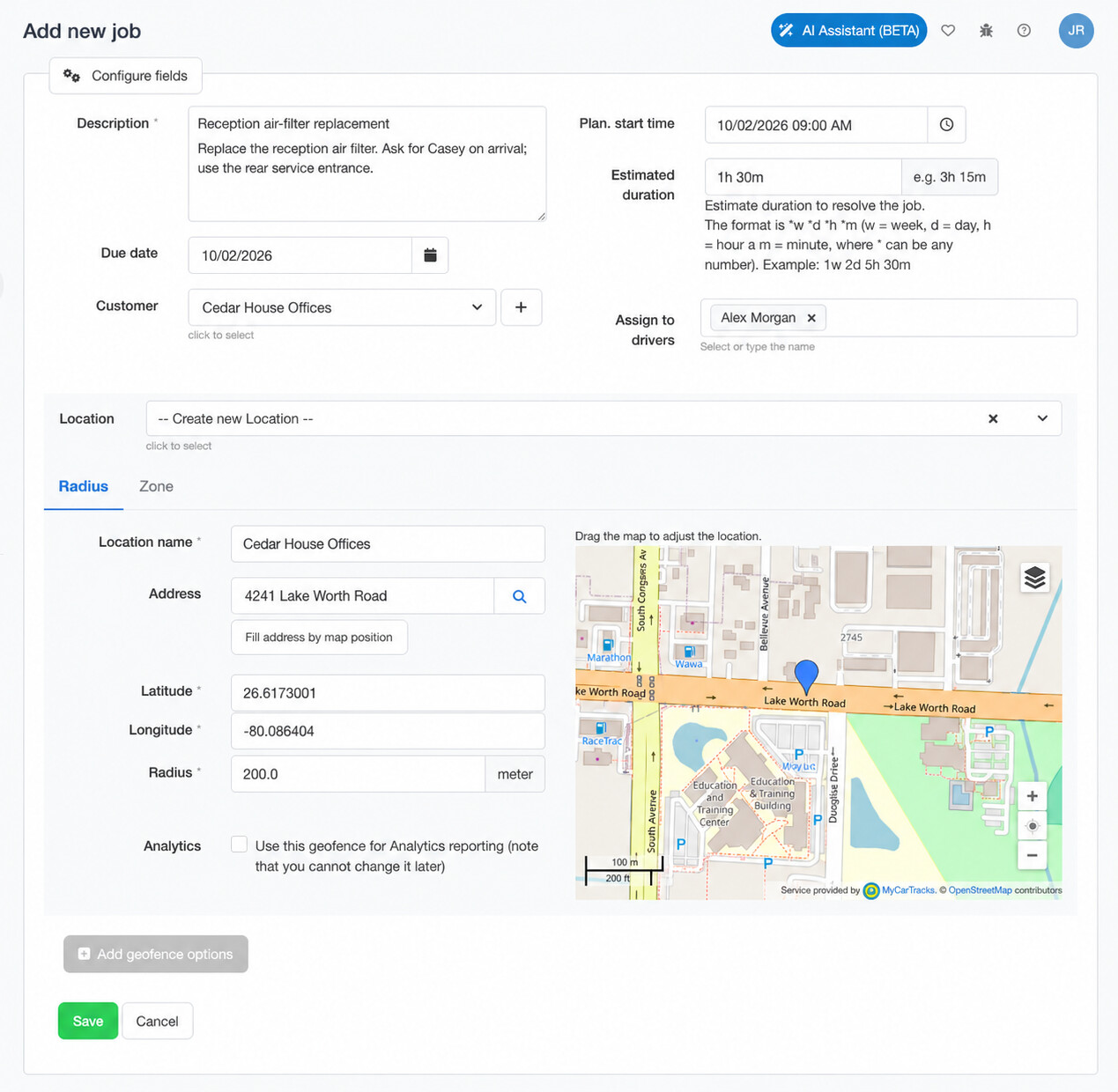
Example: assign a reception air-filter replacement to Alex Morgan at Cedar House Offices.
For an estimated duration, use a value such as 1h 30m. Set a planned start time when entering an estimated duration.
Example: “Replace the reception air filter. Ask for the facilities contact on arrival; use the rear service entrance.” Assign it to the technician visiting that location and set a job area covering the actual work site.
For repeat customers, maintain records under Geofences > Customers. Check both the customer details and the job area when creating a job. Changing a customer’s position does not automatically move an existing job’s geofence.
Find a nearby driver
Open Jobs > Job planner, search for the address, and review Nearest drivers within the Search circle. Increase the search area if no drivers appear. Use the position information to choose a driver, then assign the job to them.
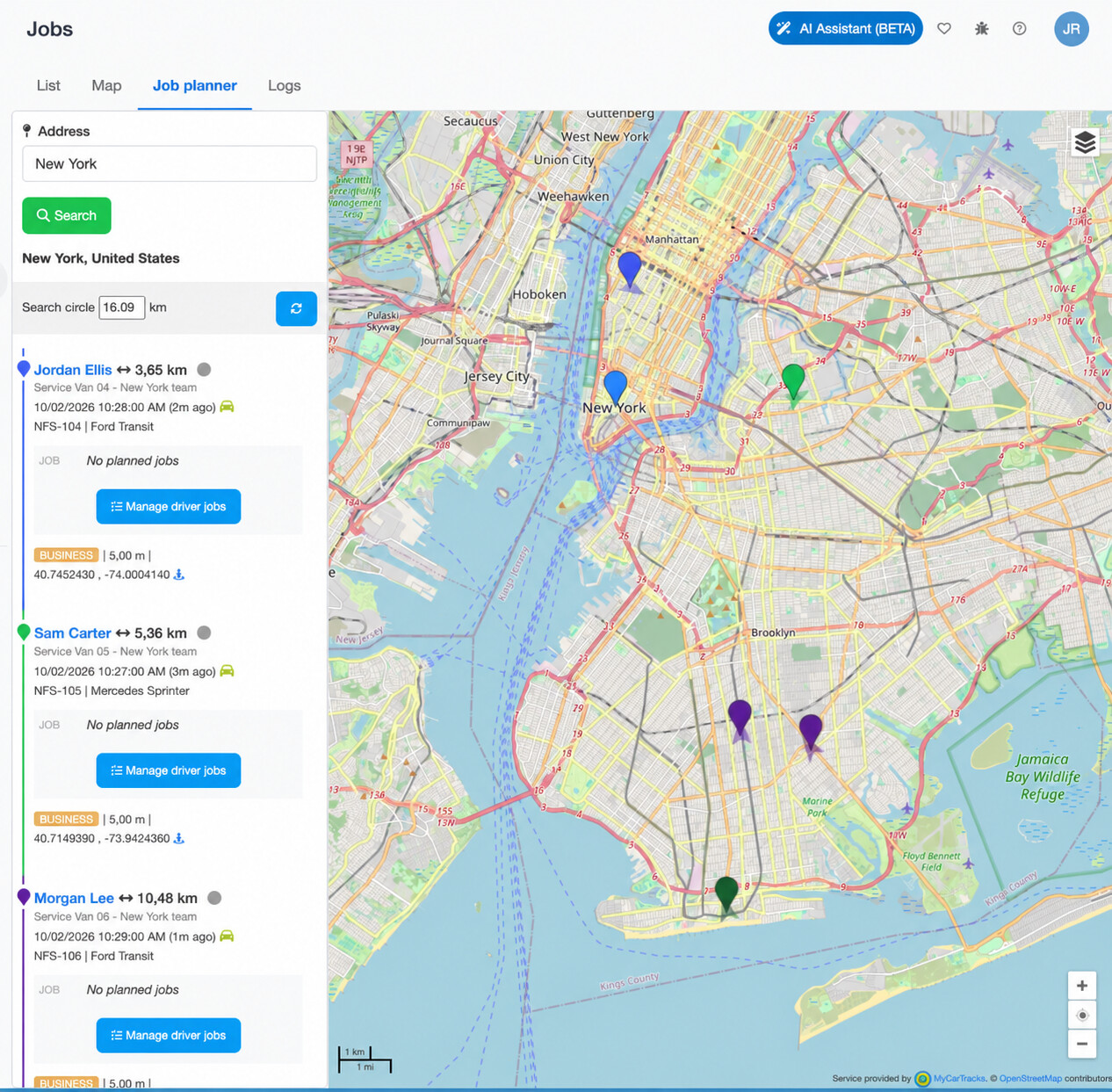
This separate New York planning example shows nearby drivers and the Manage driver jobs action.
The displayed distance from an address is a straight-line distance. Consider the route, current workload, and suitability for the task before assigning work.
3. Monitor progress
Use Jobs > List to sort and filter jobs. Open a job’s detail to review its assignment, customer, location, schedule, status, and logs. Use Jobs > Map to view job activity with driver positions.
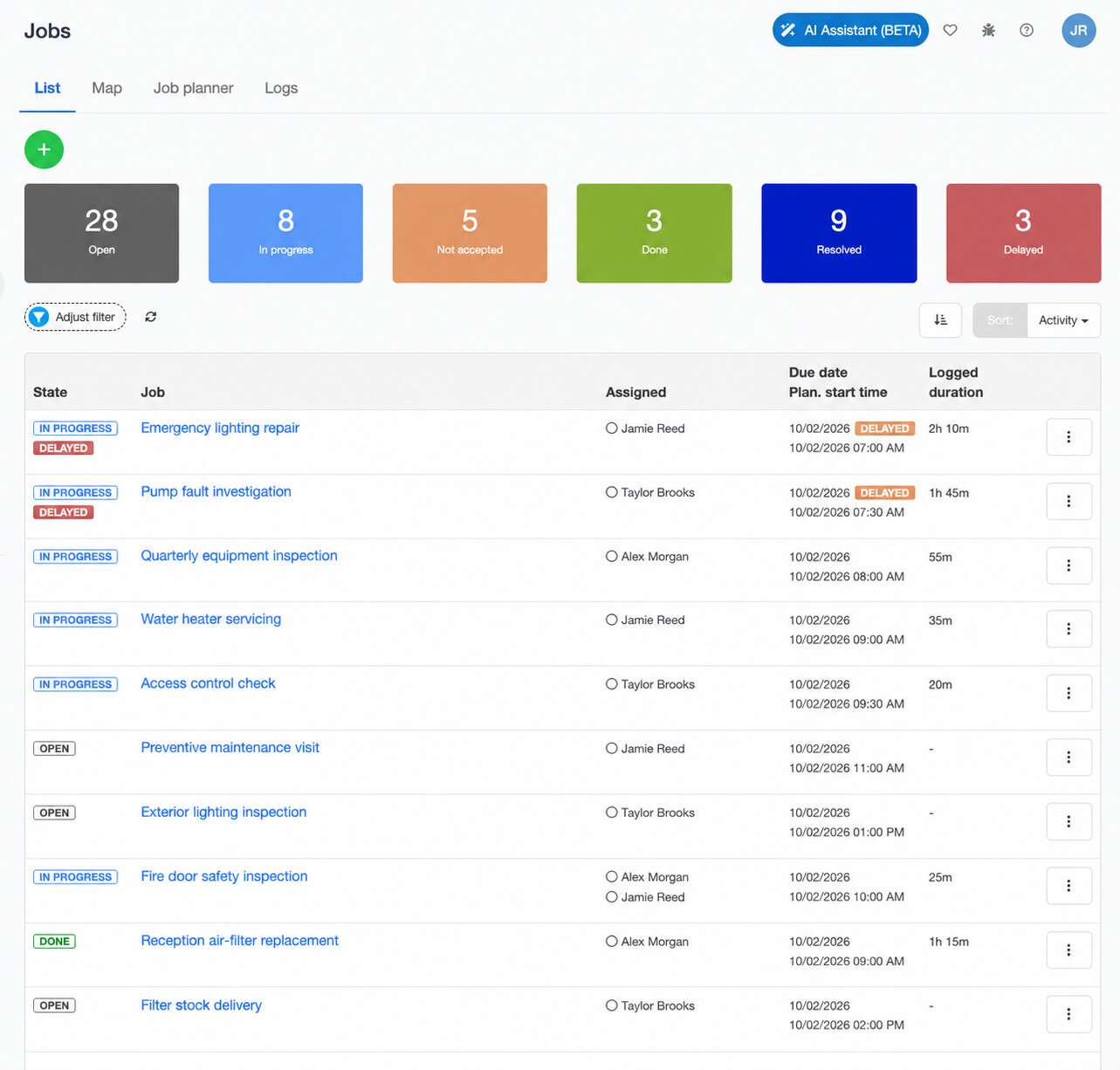
The Jobs list summarizes work and highlights delayed jobs.
Jobs can be Open, In progress, Not accepted, Done, or Resolved. A delayed indicator highlights overdue work; it is separate from the job status. Driver positions and updates depend on the device recording and synchronizing its data.
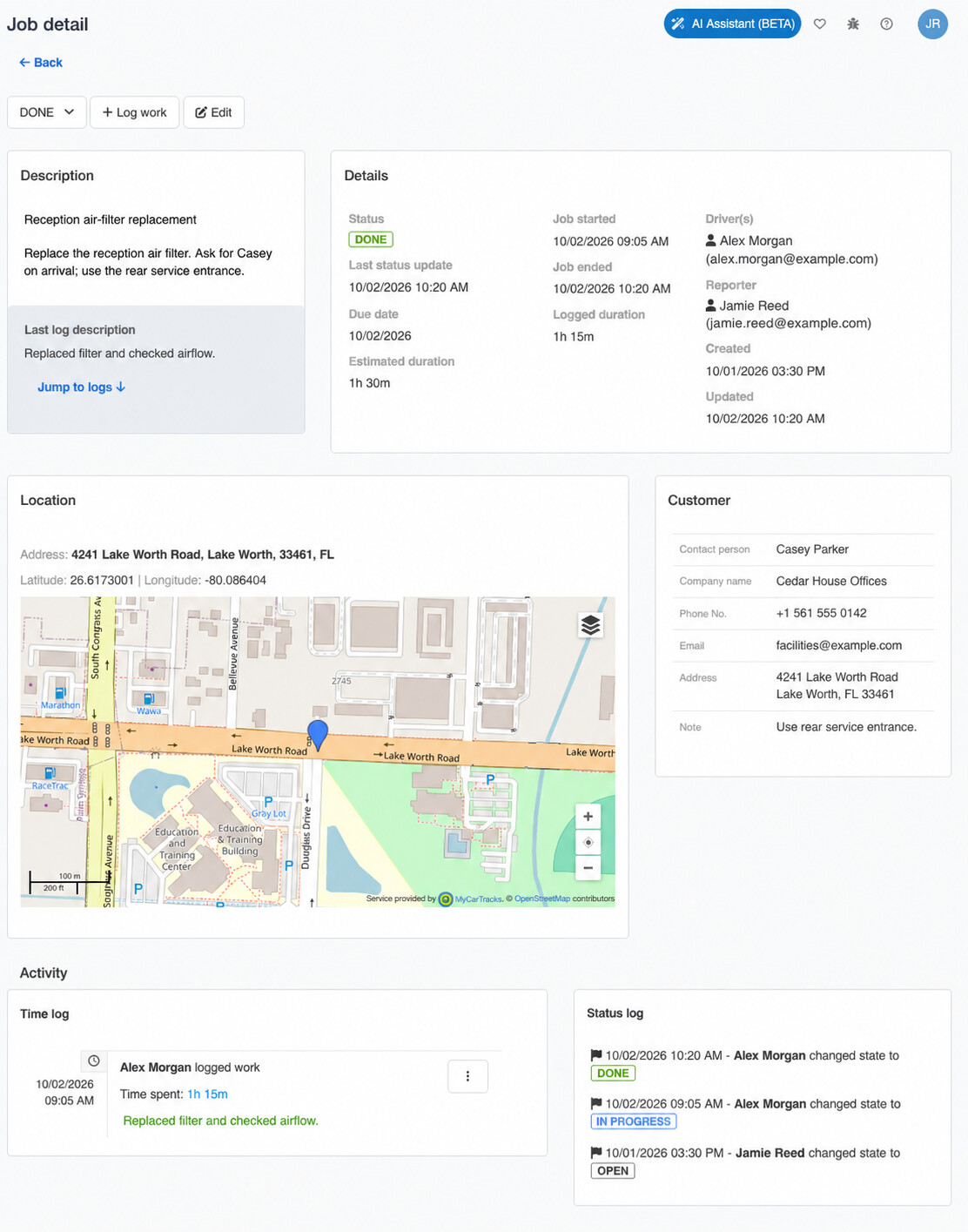
The completed example shows 1h 15m logged by Alex Morgan, with its time and status history below.
4. Work with jobs on Android
- Open the app’s menu and select Jobs.
- Tap a job to read its instructions, customer information, schedule, and location.
- Tap Navigate to open navigation to the job location.
- Use the available status buttons to record progress. For example, Start changes an open job to In progress; Reject changes it to Not accepted. Done, Resolve, and Reopen appear as appropriate for the current status.
- Tap Add Log to record work and time manually. To review existing entries, tap the clock icon in the top-right toolbar to open Logs.
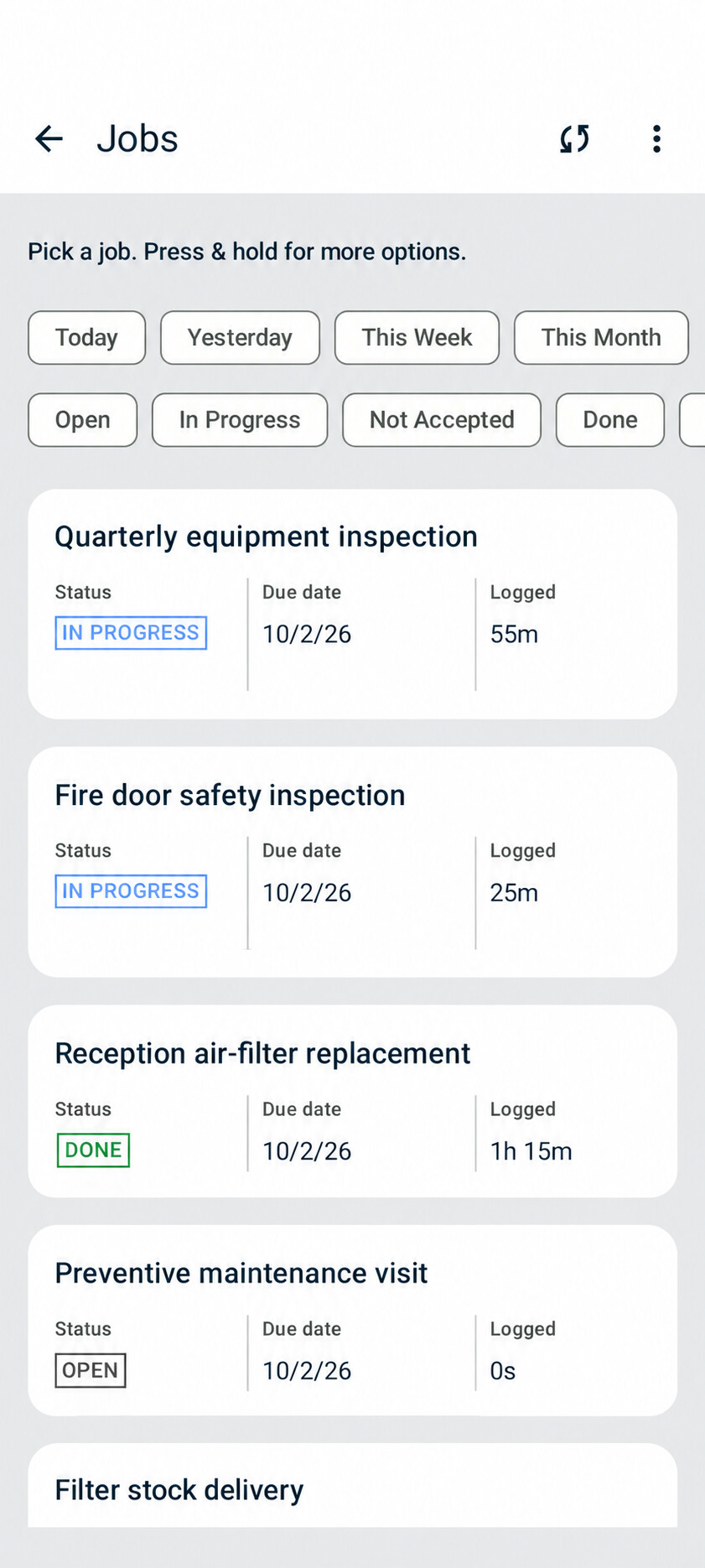
The Android Jobs list shows each job’s status, due date, and logged time. Use the date and status filters to find work.
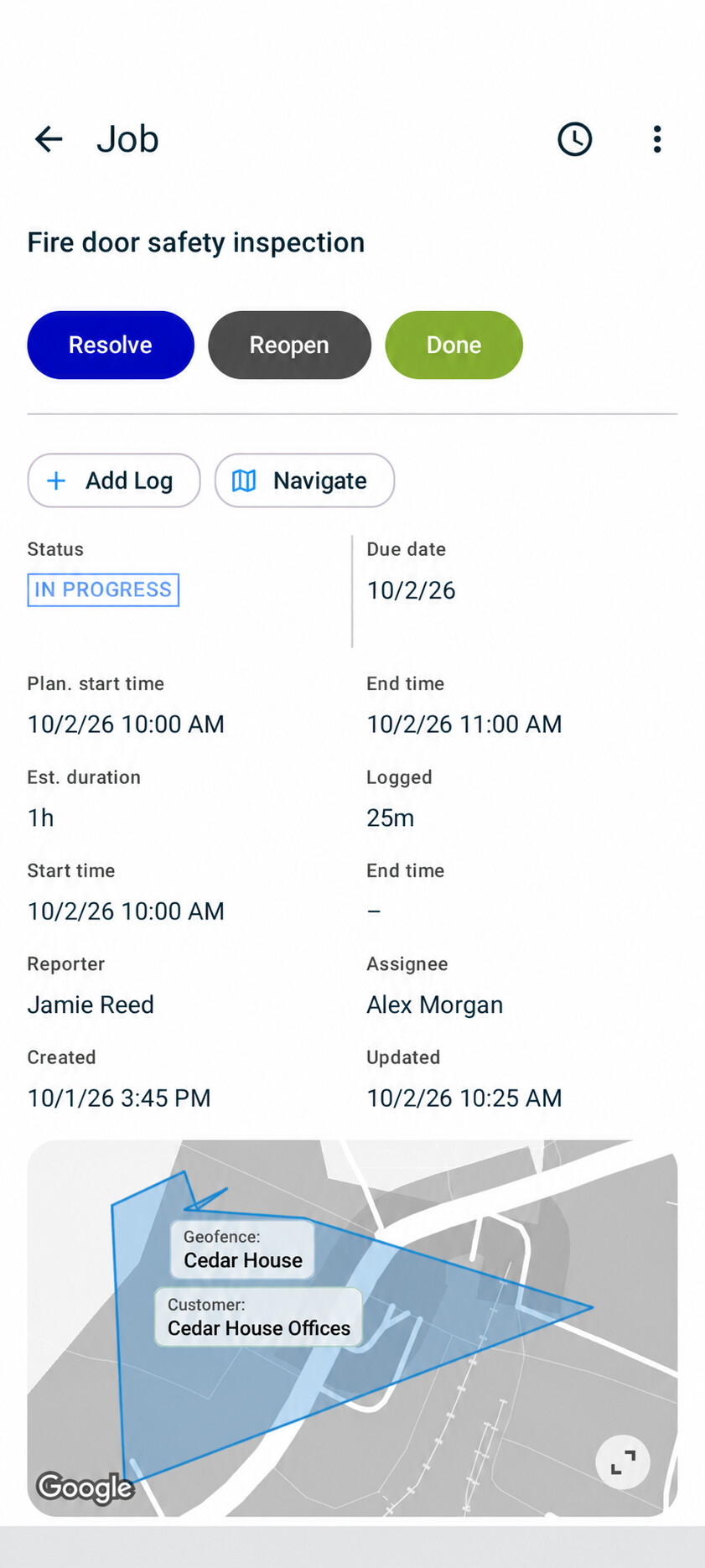
The fire door inspection is In progress with 25m logged. Use Add Log to record work, Navigate for directions, and the clock icon to review logs.
Use manual updates when a job has no reliable location or when the recorded visit does not represent the work performed. Check both the time entry and the job’s status after making an update.
5. Enable automatic progress and time logging
Automatic job updates are configured in the web application:
- Open the account menu and select Settings.
- Select the Jobs tab.
- Under Automatic job updates, enable Automatically update jobs from geofence visits.
- Click Save.
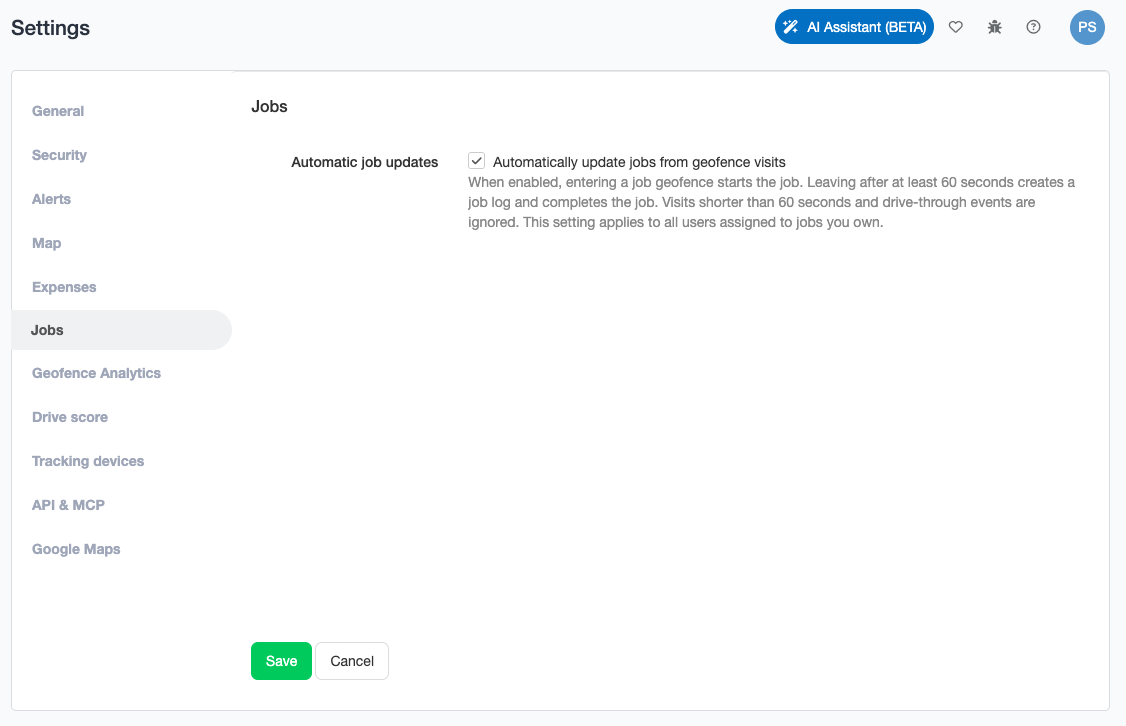
Enable automatic job updates in the job owner’s web account and click Save.
This setting applies to users assigned to jobs owned by that account. It uses visits to the job’s geofence:
- Entering the job area starts the job and changes its status to In progress.
- Leaving after a visit of at least 60 seconds creates a time log and changes the job to Done.
- Visits shorter than 60 seconds do not create a time log or complete the job. Drive-through events are ignored.
Use an accurate job area and make sure the worker’s location data synchronizes. Automatic updates may appear later when location data is uploaded after an offline period.
Upgrading from an older app? The current Android Jobs settings no longer include Auto logging or Min auto logging time. Use the web setting above; the minimum visit duration is 60 seconds.
6. Work offline
Jobs already synchronized to the Android app remain accessible without an internet connection. Workers can review job details, update status, and record logs. The app sends those changes after internet access returns.
Before working offline, synchronize while connected so the device has the latest assignments. New jobs and changes made in the office cannot appear on an offline device until it reconnects. Location-based automatic updates also depend on the location data reaching MyCarTracks.
7. Review logs and download CSV reports
Open Jobs > Logs in the web application to review job work and recorded time. Use Adjust filter to select the report type and relevant filters, apply your selection, and use Download CSV to export the results for spreadsheet analysis or another system.
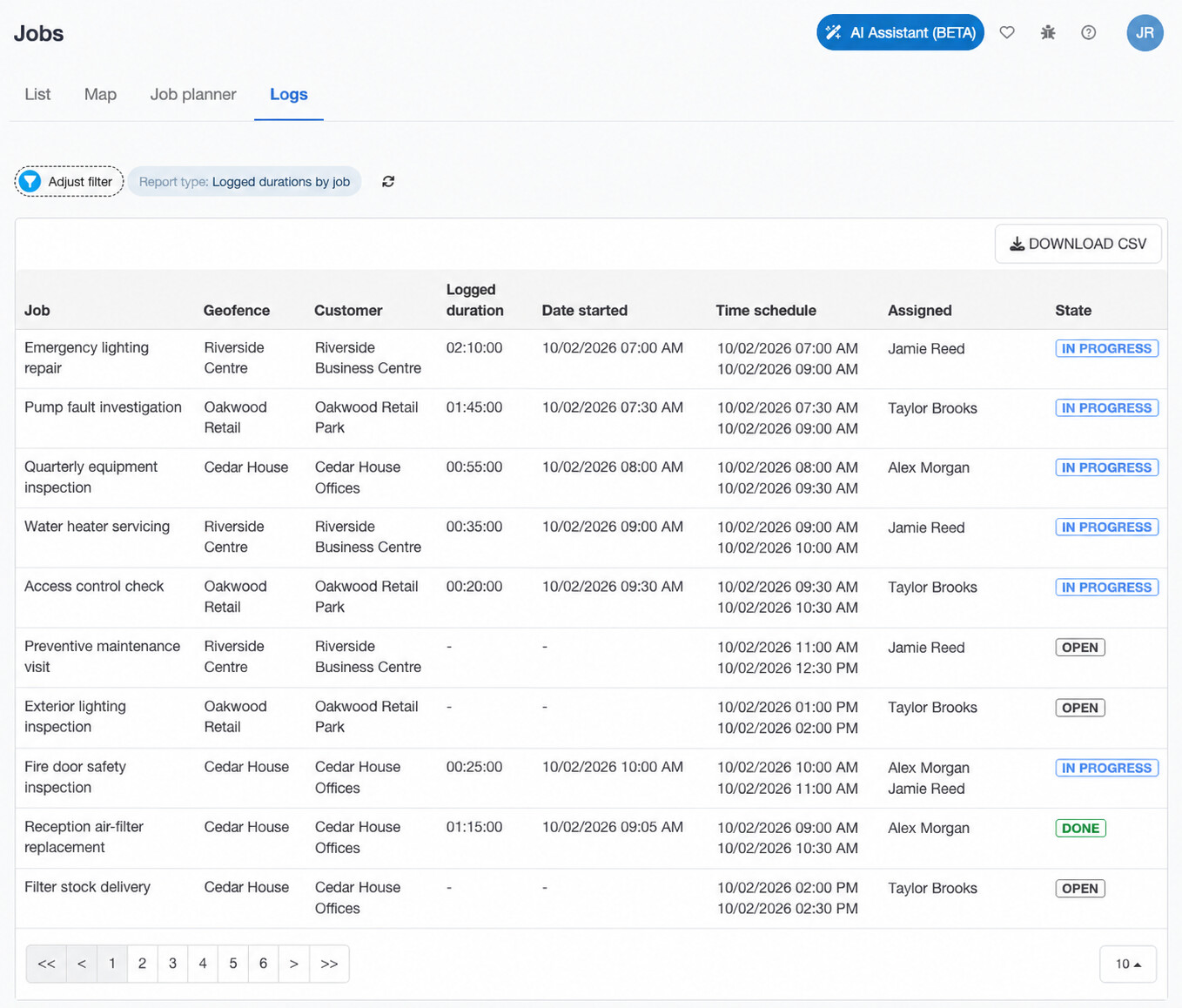
Logged durations by job includes the example air-filter replacement with 01:15:00 recorded. Use DOWNLOAD CSV to export the report.
Open individual job details when you need to investigate a particular job’s status or entries. Use the tracks map alongside job records to review routes taken between work locations.
Turn Jobs off on a worker’s device
On Android, open Menu > Settings > Jobs and turn off Allow Jobs. The company account’s Jobs dispatch extension is managed separately in the web application.
Troubleshooting
A worker cannot see an assigned job
Check that the job is assigned to the correct driver, the Android app is connected to the expected account, and Allow Jobs is enabled under Menu > Settings > Jobs. Connect to the internet and synchronize again.
Automatic progress or time is missing
Check Settings > Jobs in the job owner’s web account and confirm automatic updates are enabled. Verify the job’s geofence, the driver’s assignment, and the device’s location permissions and synchronization. A visit shorter than 60 seconds does not produce an automatic time log. Add a manual log if needed.
Offline updates have not appeared in the office
Reconnect the Android device, open MyCarTracks, and let it synchronize. If synchronization reports that the job was changed, deleted, or reassigned, review the current job before retrying.
For further help, contact MyCarTracks Support with the affected job, driver, device model, Android version, and a description of the issue.