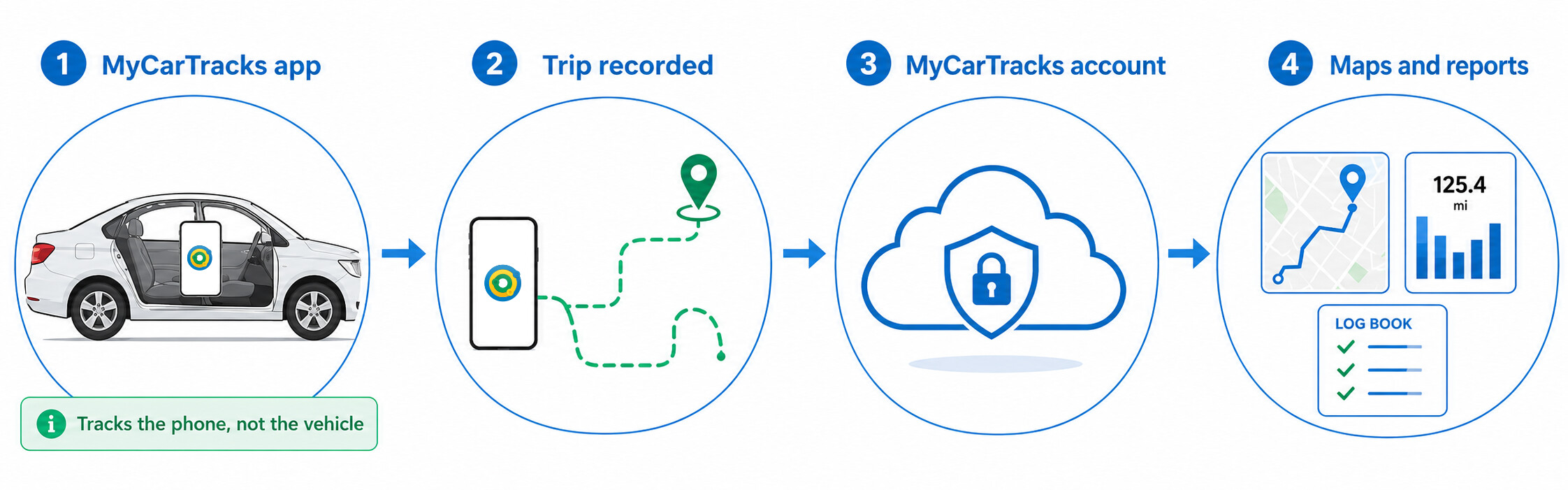
For individual drivers, MyCarTracks works like a sports tracker for driving. The app automatically records trips as you drive and makes it easy to create mileage reports for tax records.
For teams and fleets, each driver uses the app on their phone while authorised managers use the web dashboard to set up vehicles, view shared maps and trip history, and create mileage reimbursement reports. Depending on the plan and permissions, managers can also use live locations, geofences, alerts, and other fleet tools.
You do not need to install hardware in your vehicle to get started. MyCarTracks tracks the phone’s location, not the vehicle’s, and cannot automatically discover or connect to a vehicle. To see a vehicle on the map, the phone must be travelling in it and set up for tracking.
Start with the setup that matches you
I am tracking my own mileage
Install MyCarTracks on your Android phone or iPhone, create an account in the app, add your vehicle, and complete the Tracking Checklist. Once setup is complete, drive as usual and review your trips when you need to.
I am setting up a team or fleet
Create a web account, set up your fleet, and invite drivers to connect the MyCarTracks app on their phones. Once your team is ready, use the web dashboard to manage vehicles, review trips, and create reports.
For complete setup instructions, see How to create a fleet and add vehicles.
Drivers and dashboard users are different roles. A driver records trips through the mobile app. A shared-plan user is a person who has access to selected vehicles and features in the web dashboard. One person can be both, but they do not have to be.
What happens after setup
- The app records your drives.
MyCarTracks uses the phone’s location services to detect driving and record trip details. Make sure the app has the permissions it needs and that you are using the recording mode you intend to use. - Trips sync to your account.
If the phone temporarily has no mobile signal, the app can keep recording and sync the data when connectivity returns. Live location is only available while the phone can send data. - Classify trips when needed.
MyCarTracks can categorise trips automatically using work hours and intelligent categorisation. When you want to make a quick change, swipe to mark a trip as business or personal. Open trip details only when you want to review or correct a particular journey. - Use the information you need.
- Individual drivers: Create mileage reports from your recorded trips when you need them for tax records or reimbursement.
- Teams and fleets: Use the web dashboard to manage vehicles, view shared maps and trip history, and create reports. Depending on the plan and permissions, managers can also use live locations, geofences, alerts, and other fleet tools.
Your phone is the tracking device
In the standard setup, MyCarTracks uses the location services on the driver’s phone. If the phone is not travelling with the vehicle, MyCarTracks cannot report that vehicle’s current location. The app does not need to be plugged into the vehicle or connected to the vehicle’s onboard system.
If your use case needs a dedicated GPS unit, MyCarTracks also supports compatible hardware tracking devices. Hardware is purchased and installed separately; MyCarTracks does not install devices in vehicles. Read Location Tracking Devices before choosing or connecting a unit.
Need help with setup or recording?
If a trip is missing, first check the Tracks list in the mobile app. This helps distinguish a recording issue from a sync or dashboard issue. Then use the guide for your device or task:
- Android permissions and Tracking Checklist: Why MyCarTracks asks for permissions and manual permissions setup and Tracking Checklist
- iPhone or iPad: Recording not working on iOS: troubleshooting
- GPS or location-quality issues: Troubleshooting GPS issues
- Fleet setup: How to create a fleet and add vehicles
Some of these guides contain legacy screen examples. If a screen on your phone differs, follow the in-app Tracking Checklist or contact MyCarTracks Support.
Access, privacy, and plans
What a person can see depends on how the account is set up, which vehicles are shared with them, and the permissions assigned to them. Teams can also use controls such as roles and work hours where available. Review your organisation’s policy and the MyCarTracks Privacy Policy before rolling out tracking to drivers.
Feature access, report limits, and data-retention periods vary by plan. See MyCarTracks pricing for the current details.