Dark mode gives MyCarTracks darker backgrounds and lighter text across the app. You can switch between Light and Dark whenever you want, using the appearance that suits you.
Dark mode was added in Android version 2.8.4.7. The quickest way to turn it on is More > Appearance > Dark.
Turn on dark mode
- Open the MyCarTracks Android app.
- Tap More in the bottom navigation to open the app menu.
- Tap Appearance, just below Settings.
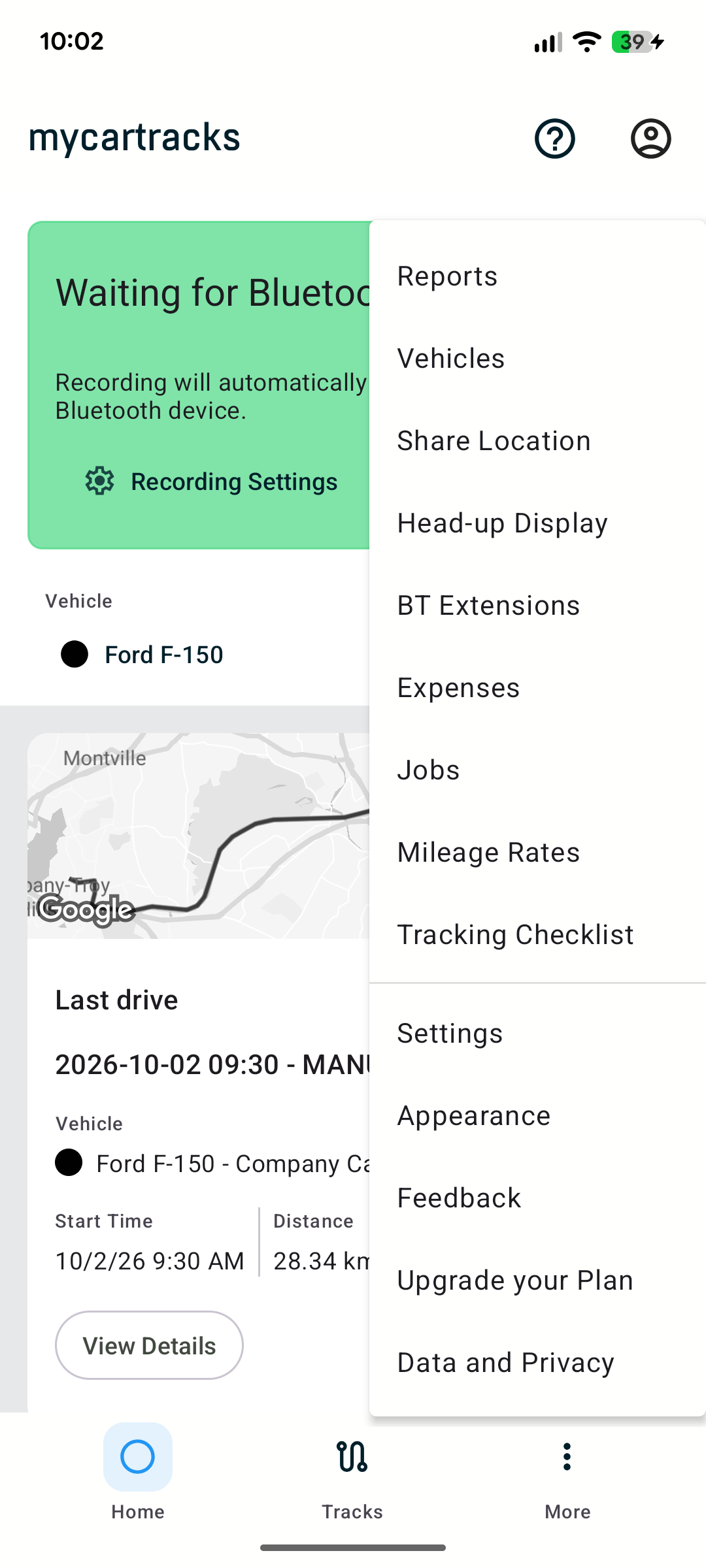
Open More and choose Appearance.
- Select Dark in the Appearance dialog.
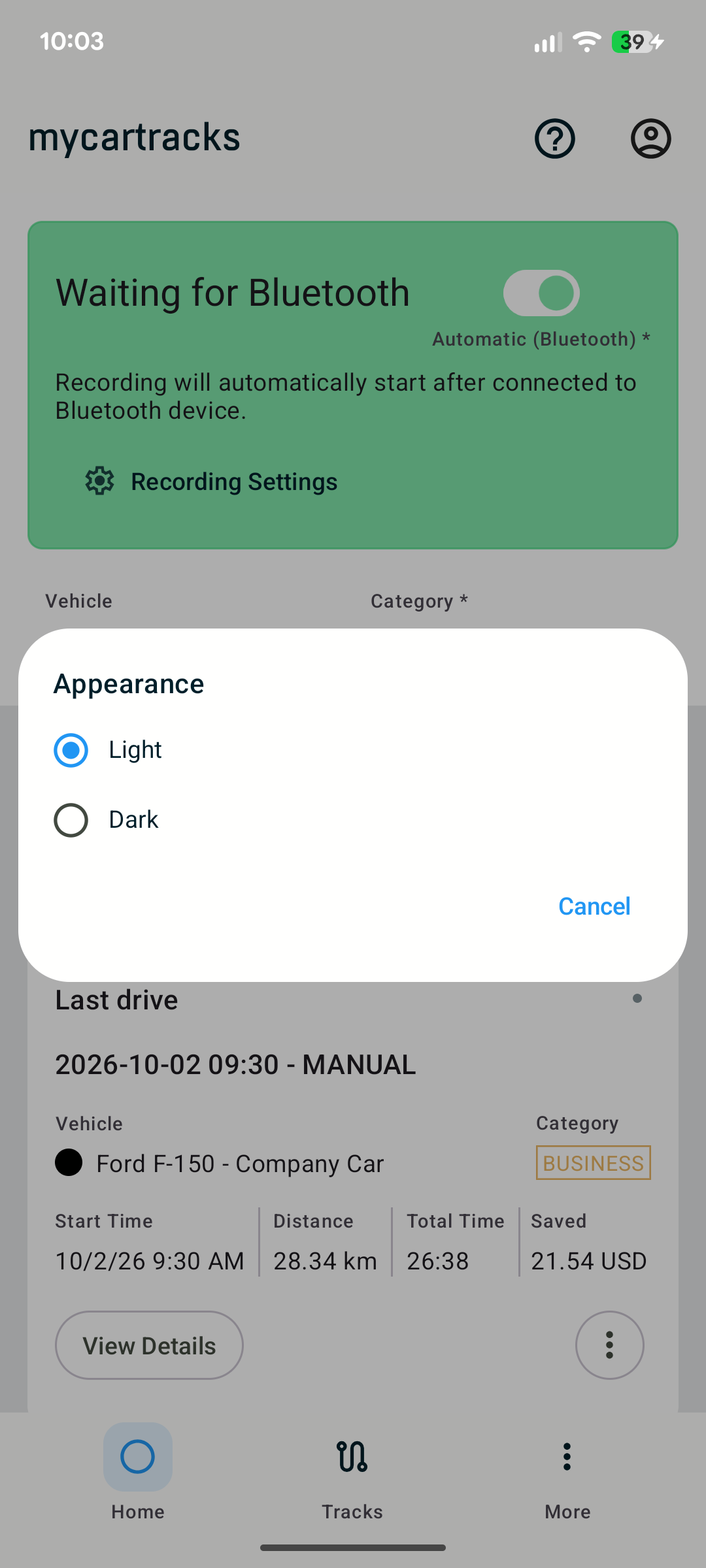
Tap Dark to change the app’s appearance. The selected option has a filled radio button.
The app applies your choice as soon as you select it; there is no separate Save button. Your choice is saved for the next time you open the app. Tap Cancel to close the dialog without changing the appearance.
You can also find the same choice under More > Settings > Display & Units > Appearance.
Dark mode overview
Dark mode changes the colors of the interface, including backgrounds, cards, menus, dialogs, buttons, and charts. Your recorded trips, distances, categories, and selected recording mode remain the same.
Home screen
The Home screen uses a dark background, lighter text, and colored recording controls. Your selected vehicle, category, and last-drive summary remain available in the same places.
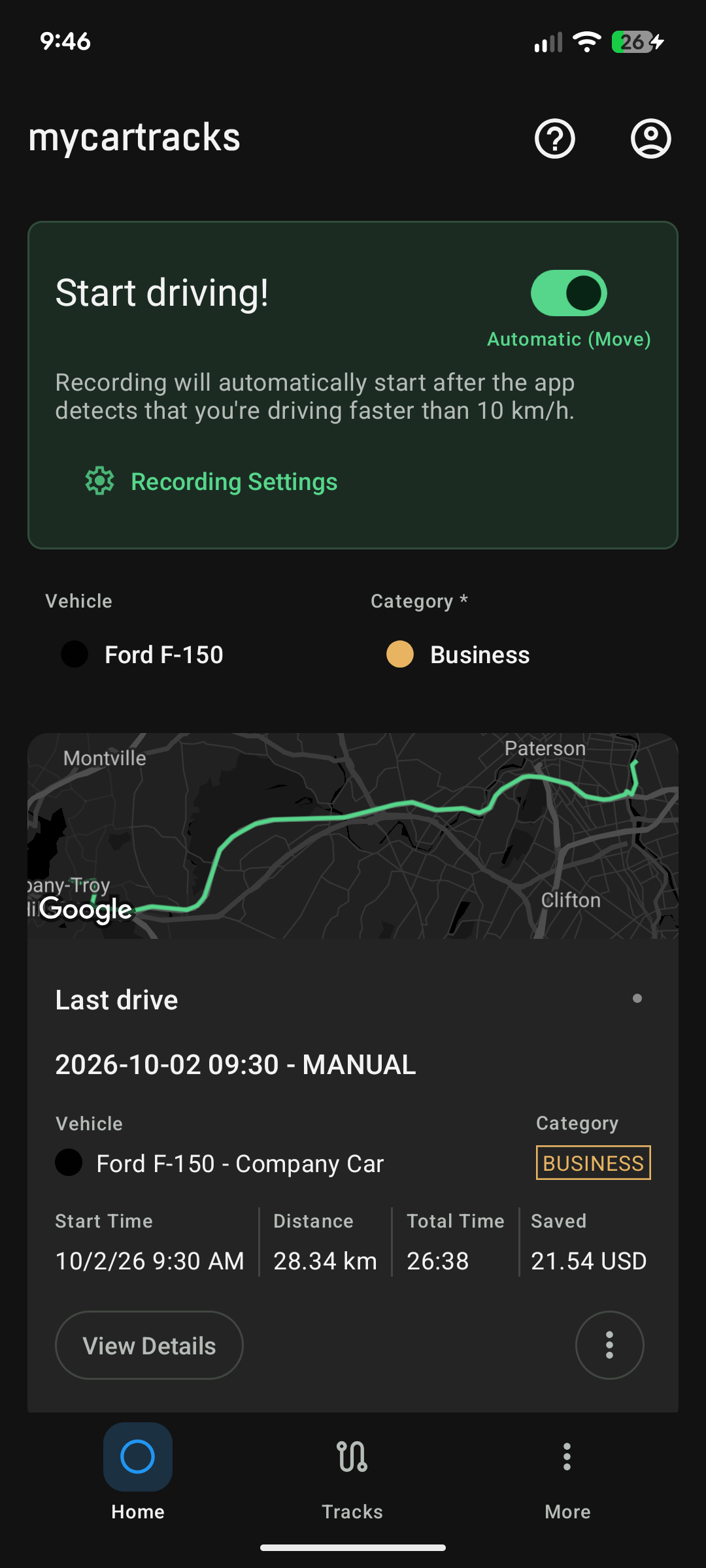
The Home screen in dark mode, with recording controls and a last-drive summary.
Tracks screen
Trip cards and filters also use darker backgrounds. You can still review routes, read distance and duration, check categories, and browse your trip history as usual.
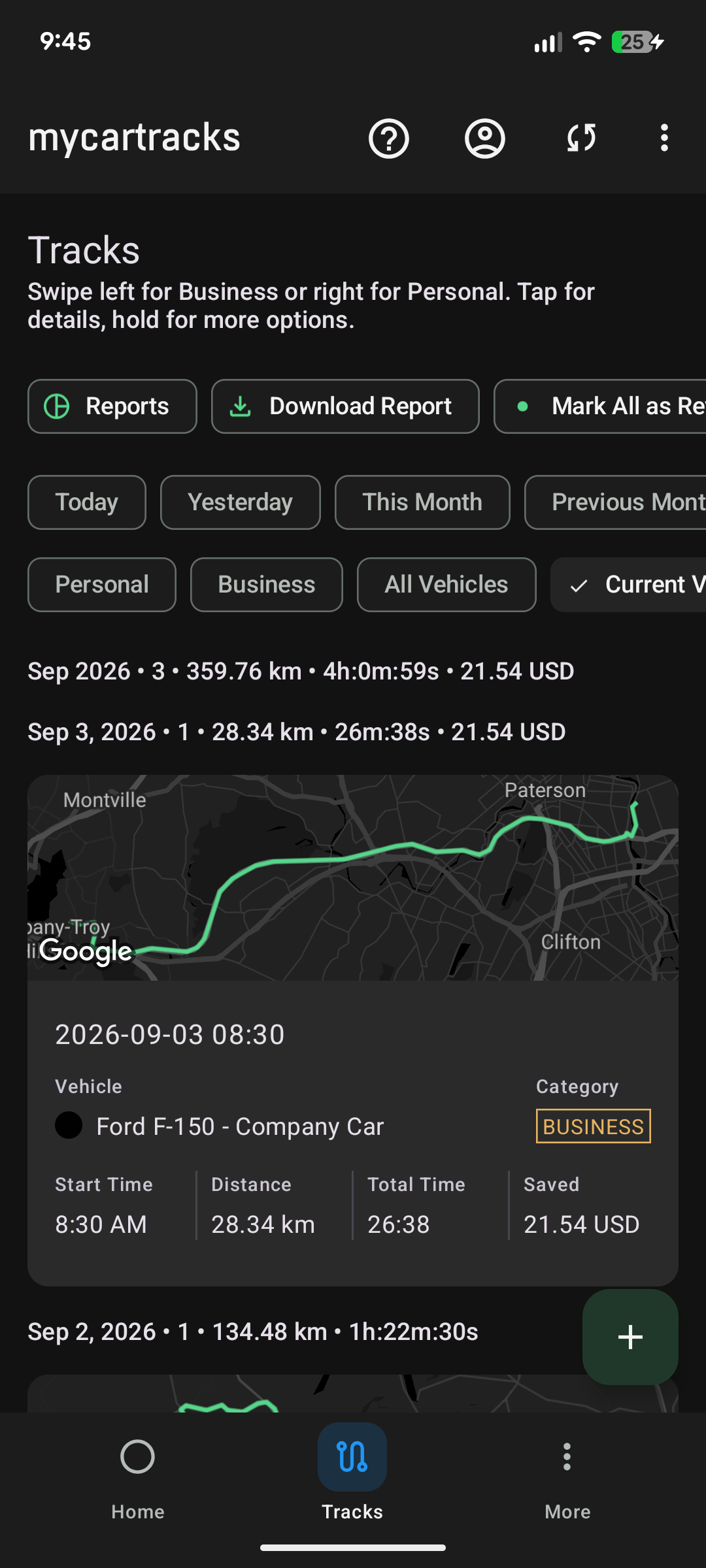
The Tracks screen in dark mode, with filters, a route preview, and trip details.
Choose a dark map
Maps also have a separate Map style setting. If you use Silver or Night, switching the app appearance switches between the matching light and dark street maps. Normal, Satellite, and Terrain keep their selected map style.
To choose a dark street map directly, go to More > Settings > Display & Units > Map style and select Night. You can change the map style independently of the app’s Light or Dark appearance.
Switch back to light mode
Open More > Appearance and select Light. The change applies immediately, just as it does when selecting Dark.
Common questions
Does MyCarTracks follow my phone’s dark-mode setting?
MyCarTracks uses its own Light or Dark choice. Changing the phone’s system appearance does not automatically switch the app. Choose the mode you want in Appearance; Light is the default.
Why is my map still light after I select Dark?
Check More > Settings > Display & Units > Map style. Some map styles keep their own appearance. Select Night if you want a dark street map.
What if I cannot find Appearance?
Check that you are using Android version 2.8.4.7 or later. Update the app if needed, reopen it, and look under More or Settings > Display & Units.
For the release highlights, see Android app update 2.8.4.7.